Browser extension
Check a site from another country
The ProxyForge browser extension routes Chrome or Firefox through the proxies on your account, for every site or only the ones you name. Switch countries from the toolbar, see the exit IP the site sees, and keep the rest of your browsing direct.
Chrome and Firefox. Install links are on the Apps & extensions page of your dashboard.
For the people who have to check, not assume
- QA and release testing
- Reproduce a defect that only shows up in one region. Send the staging host through a proxy in that country and leave the rest of the browser direct.
- Support
- Open the page a customer reported through an address in their country, and see the price, language or refusal that country is served.
- Data engineering
- Before a crawler is pointed at a target, load it by hand through the same proxy and confirm which country it exits in and how the site responds to it.
Crawlers, CI jobs and scripts need a proxy too, but not a browser. ProxyDesk gives them one local endpoint.
What it does
- Your account's proxies, already listed
- Sign in to the ProxyForge dashboard in the same browser and the extension imports the proxies on your account from that session. Pasted lists and dashboard codes work too.
- One click, no password prompt
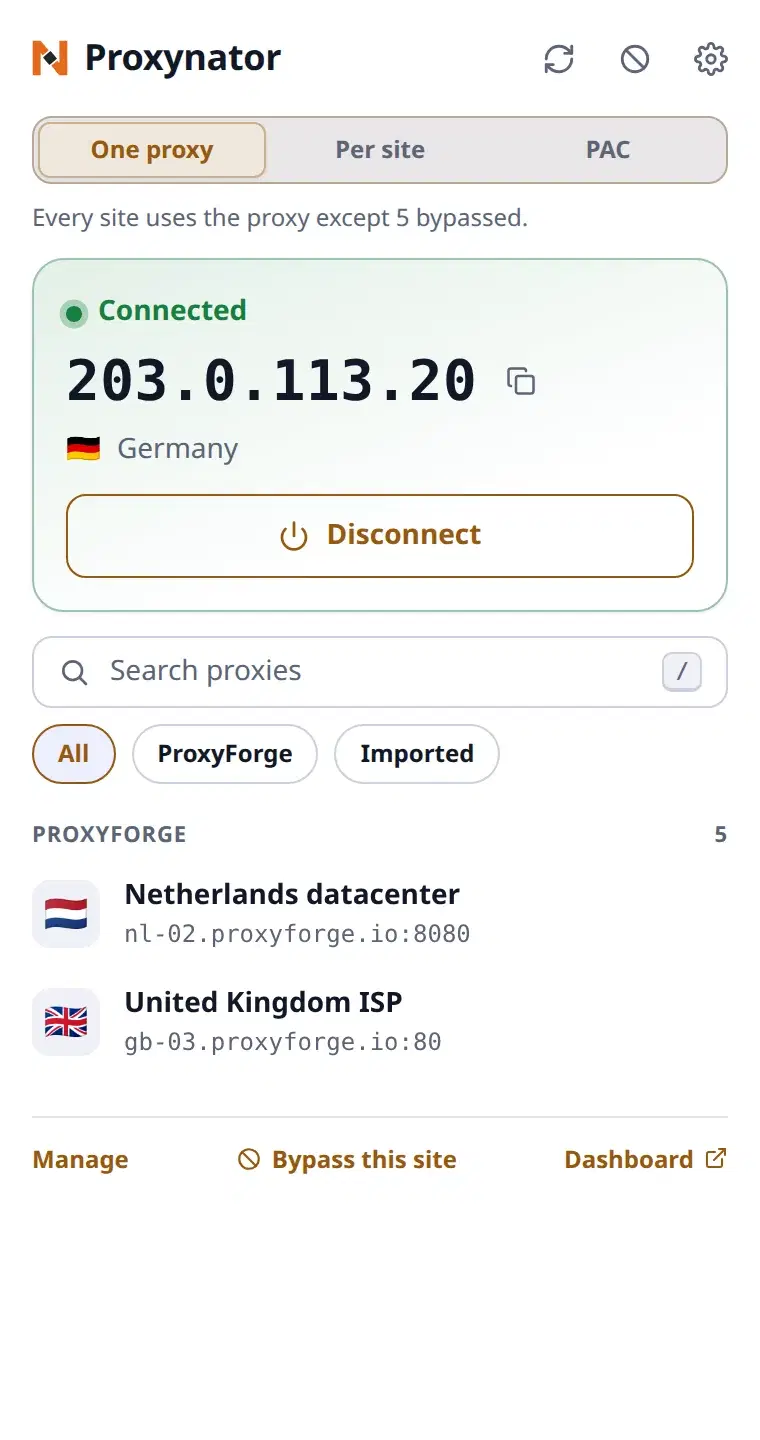
- Connect and Disconnect from the toolbar. The extension answers the proxy's login challenge itself, so the browser never opens a credentials dialog.
- Exit IP and country on screen
- After a connect, the popup shows the address sites see and its country, and says plainly when the proxy refused the login or did not answer.
- Routing rules per site
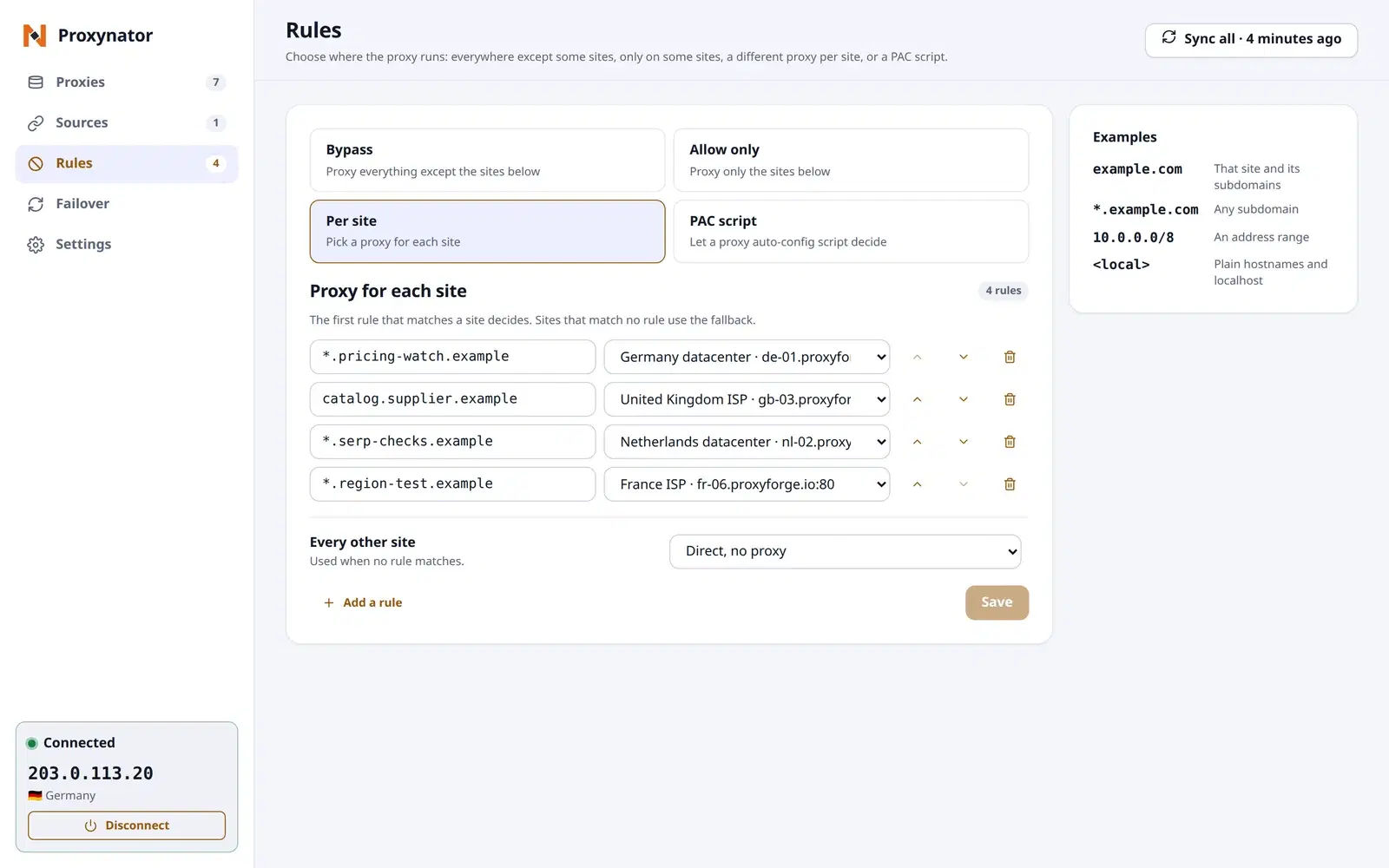
- Proxy everything except a bypass list, only an allow list, a chosen proxy per site with a fallback that can be direct, or let a PAC script decide.
- Test before you rely on it
- Test sends a request to the IP check through one proxy while your tabs keep their current routing, and records the outcome, round-trip time and exit IP. Run it on one proxy or the whole list.
- Failover and switch-on-block
- With failover on, a connected proxy that stops answering or refuses the login is replaced by the next one that passes a test. A 403 or 429 from a site you list can trigger the same switch.
Also included: optional WebRTC leak protection, an English and a Simplified Chinese interface, and light and dark themes.
The popup and the manager
The popup handles the moment: connect, switch, read the exit IP. The manager holds the list, the tests, the sources and the rules.
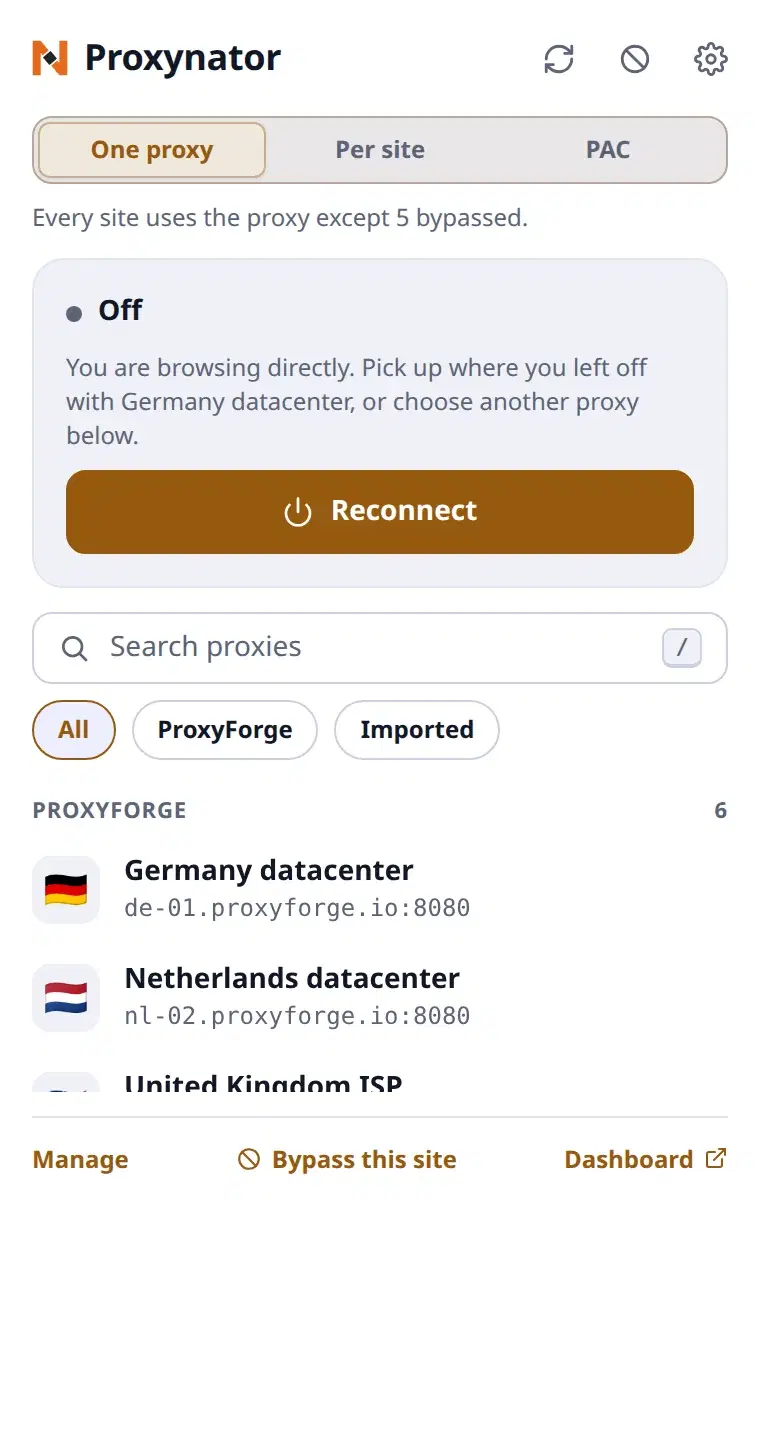
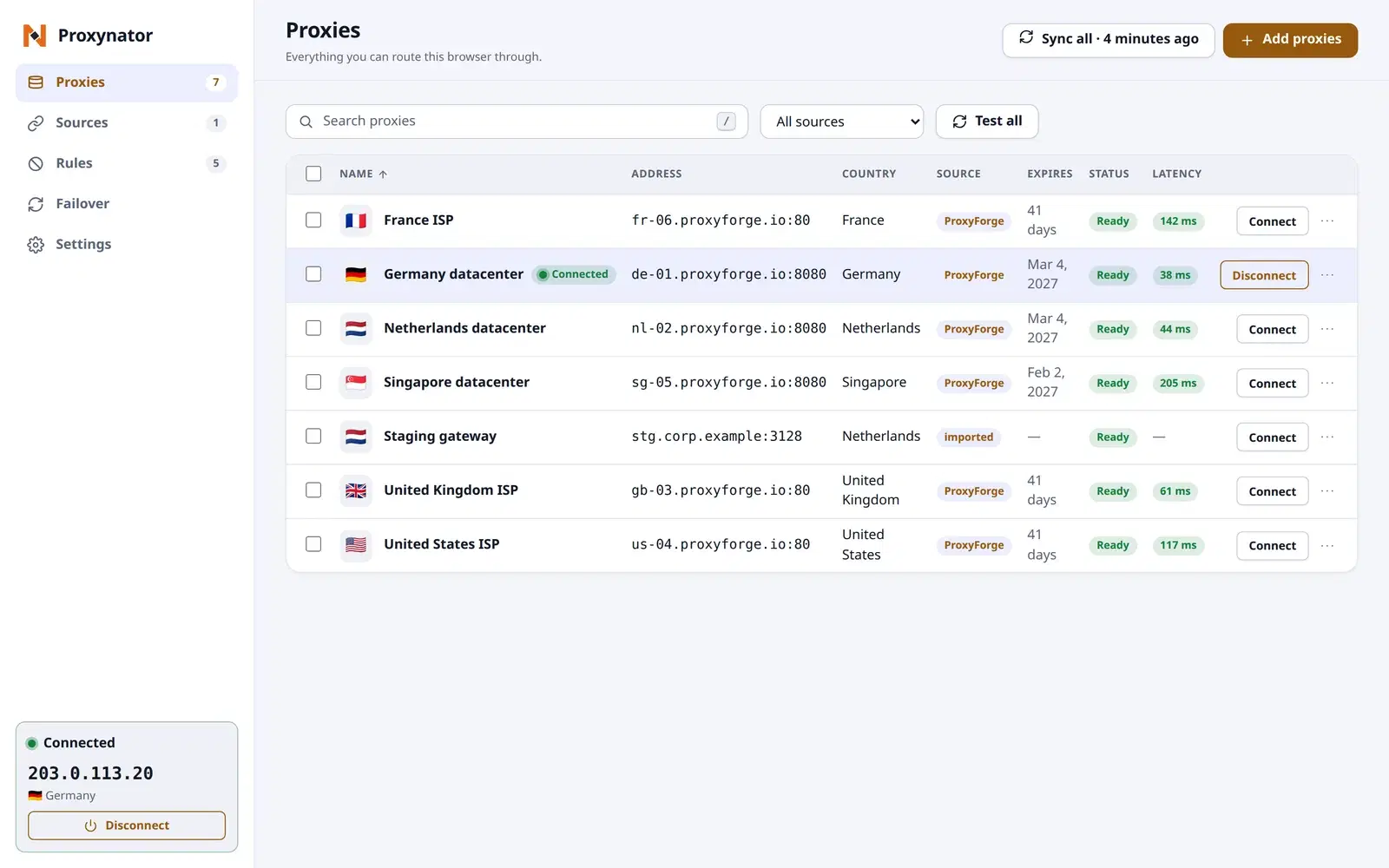
Sample data shown, light theme. A dark theme follows your system setting.
From install to first check
- 01
Install it
Chrome and Firefox. Install links are on the Apps & extensions page of your dashboard.
- 02
Sign in to your dashboard
Sign in to the ProxyForge dashboard in the same browser and the extension connects to your account by itself. Proxies from other sources can be pasted in any common format.
- 03
Test, then connect
Run Test on the proxies you plan to use. Latency lands in the Proxies table and the exit IP in each proxy's detail panel; connect from the popup once both look right.
- 04
Write the rules once
Add a rule for each host you check often, each with its own proxy, and choose what every other site does. The first rule that matches decides.
Every screen, the rule syntax and the first checks, step by step: proxy browser extension setup.
What it keeps, and what it sends
For the security review. What the extension stores sits in the browser's extension storage on the device, and leaves it only for the destinations below.
Stored on the device
- The proxies you add, with their usernames and passwords.
- Your settings and routing rules.
- The access and refresh tokens of a linked dashboard account, until you unlink it. They have the same reach as your signed-in dashboard session.
- A provider's API key, or the session read from its signed-in dashboard tab, if you link that provider.
Removing the extension, or unlinking an account, deletes it.
Where it connects, and when
- The proxy you connectWhile connected
- Your browsing traffic and that proxy's credentials.
- The proxy's own addressOn connect, on Check again, and after a failed tunnel
- An empty request over plain HTTP, to read why a login was refused. No credentials, no cookies.
- The exit-IP checkOn connect, and on Check again
- A request with no cookies, to api.proxyforge.io when your dashboard is linked, otherwise to api.ipify.org, a third-party service.
- Your dashboard's APIOn link, sync, the optional periodic refresh, and when a signed-in dashboard tab loads
- The account's access token, and its refresh token when the access token expires, to api.proxyforge.io for a ProxyForge account. The reply is your proxy list.
- Your dashboard's sign-in pageWhen you use one-click sign-in
- The browser's sign-in redirect.
- Another provider's APIOn sync, only for a provider you linked
- The API key you pasted, or the session read from that provider's signed-in dashboard tab.
- A PAC script addressWhile PAC routing is on
- Fetched by the browser, as any PAC file is.
- Google AnalyticsOnly if you switch on anonymous usage statistics
- A random install id, the extension version and the name of the action, plus which setting and its new state when a setting changes. Off by default.
There is no other telemetry, and the extension loads no remote code.
Reviewing it before rollout? The extension security review checklist shows how to check each of these yourself.
Extension questions
Where do I get it?
Chrome and Firefox. Install links are on the Apps & extensions page of your dashboard. In the browser's toolbar the extension shows as Proxynator.
Does it route traffic from other applications?
No. It sets the proxy for the browser it is installed in. For crawlers, CI jobs and scripts on the same machine, use the ProxyDesk desktop app.
Does switch-on-block catch a captcha page?
Not when the captcha page answers with status 200. Switch-on-block reacts to a 403 or 429 on the main page of a site you list, with a limit on how often it switches.
Does switching proxies change the exit IP of a rotating gateway?
Switching moves to another stored proxy. A rotating gateway keeps its exit IP until its own session changes, which the extension cannot trigger.
Are private windows proxied?
Only if the browser allows the extension in private windows. Otherwise they connect directly, and the popup says so while you are connected.
Does it collect usage data?
Only if you switch on anonymous usage statistics in Settings, which is off by default. There are no ads, no tracking and no separate account to create.
Bring your proxies into the browser
Create a ProxyForge account for the proxies, then sign in to the dashboard in the same browser and the extension lists them.
One business day, from a named engineer.