The ProxyForge proxy browser extension routes Chrome or Firefox through the proxies on your account, for every site or only the ones you name, and shows the exit IP a site sees after each connect. This guide takes it from install to a first verified check: linking the account, connecting, reading the exit IP, bypassing a site, writing per-site rules that match what you meant, and testing a proxy before you rely on it. The examples use reserved .example hosts; substitute your own.
Install it from your dashboard
Install links for Chrome and Firefox are on the Apps & extensions page of your dashboard. Once installed, the extension shows as Proxynator in the browser's toolbar, with a popup for the moment-to-moment work and a manager page for the list, the sources and the rules. Both follow your system's light or dark theme and come in English and Simplified Chinese.
The extension asks for access to all sites. That is what lets the proxy apply to every site you visit and lets it answer a proxy's login challenge without a password dialog. If your security team reviews extensions before rollout, what a proxy browser extension stores and where it connects walks through each permission and every network destination.
Link your account, or paste a list
The quickest route is to sign in to the dashboard at app.proxyforge.io in the same browser. The extension picks up the signed-in session and lists the proxies on your account, tagged ProxyForge. If the dashboard is already open in a tab, open the manager's Sources page and press Import from this tab.
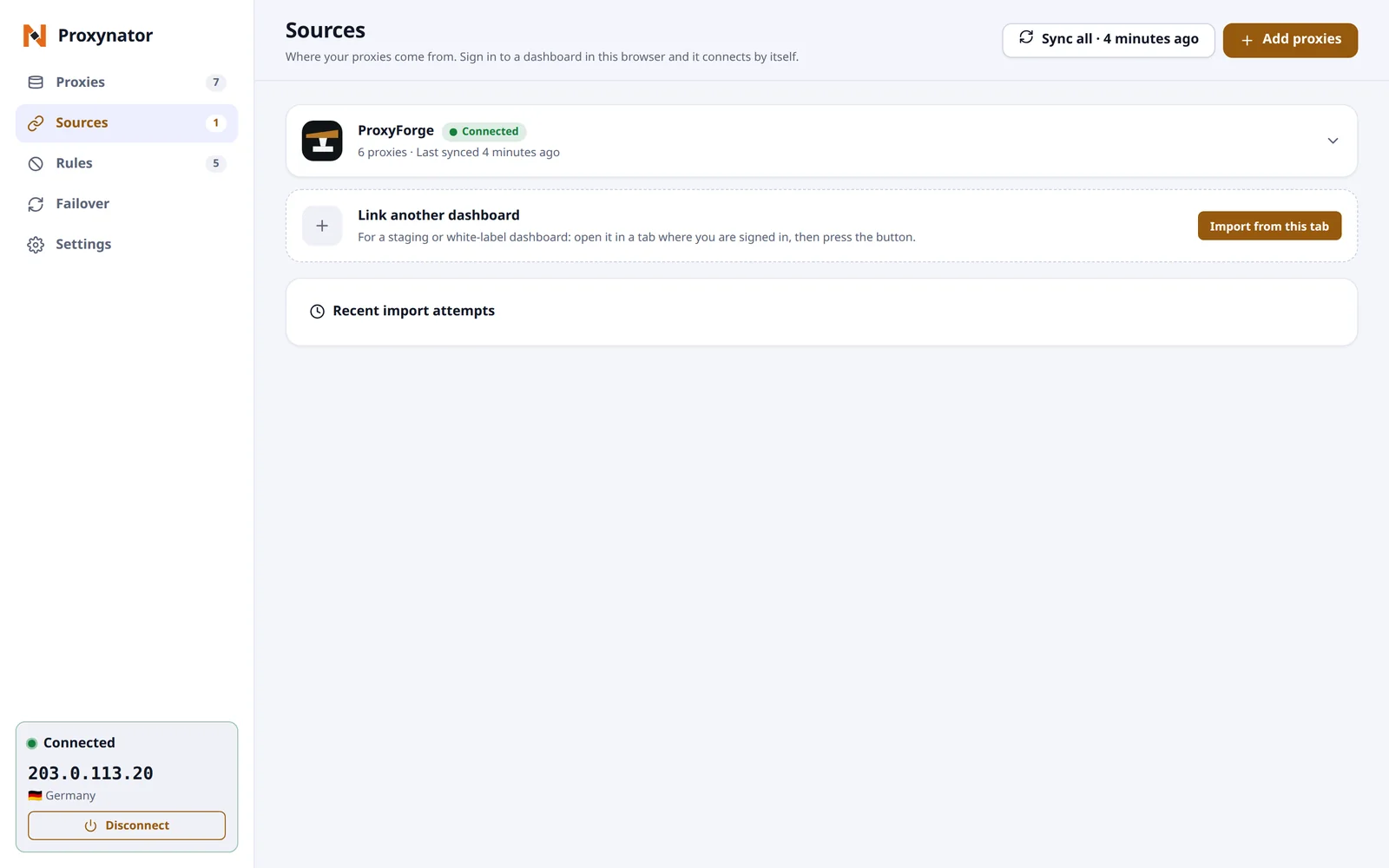
Linked sources sync when you press Sync all, and on a schedule set under Settings: every 30 minutes by default, or from five minutes to once a day, or never.
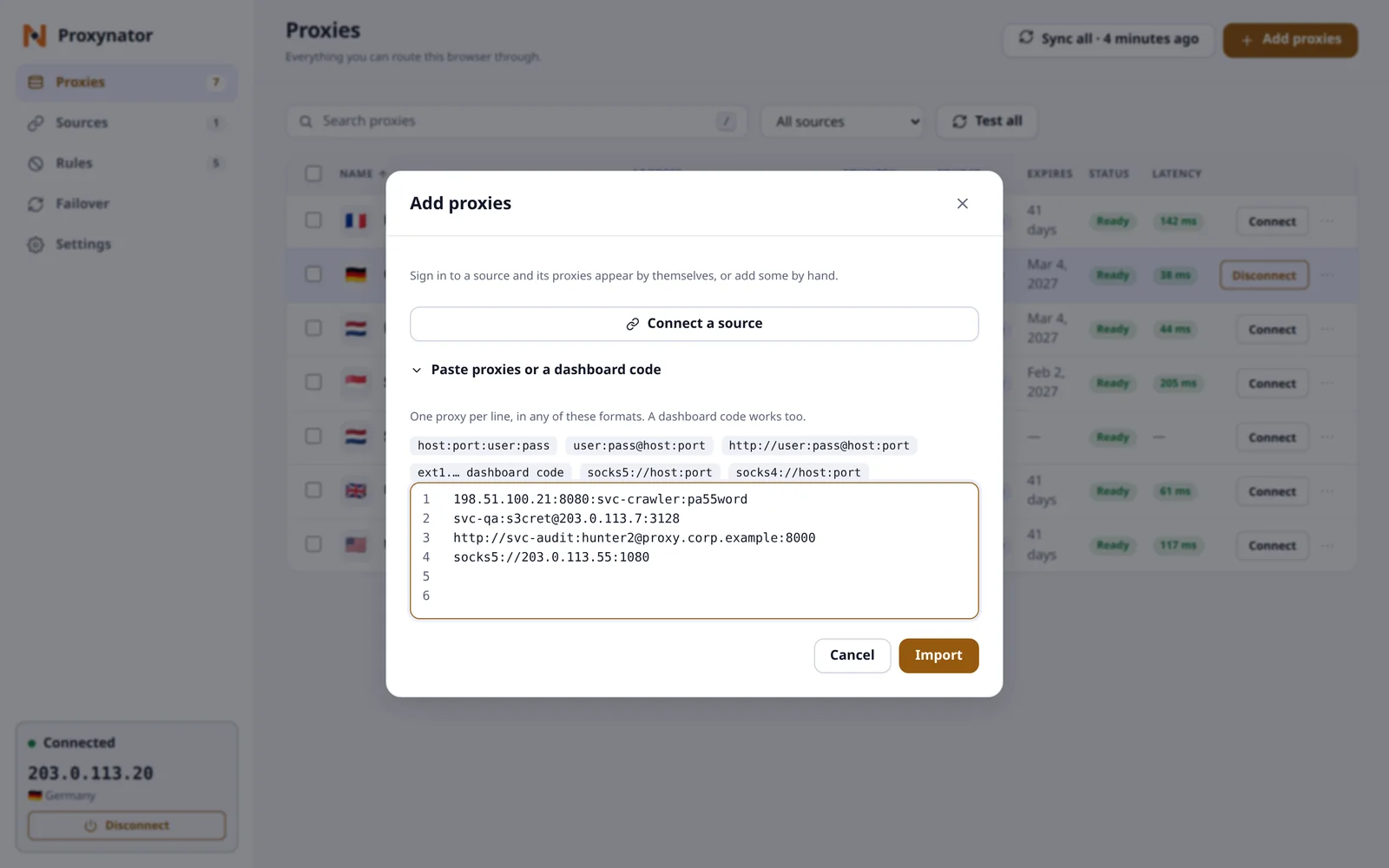
Proxies from elsewhere go in through Add proxies. Paste one per line in any of these formats; lines starting with # are skipped:
host:port:user:pass
user:pass@host:port
http://user:pass@host:port
socks5://host:port
socks4://host:port
A dashboard code, which starts with ext1., can be pasted in the same box. HTTP lines need a username and a password. A SOCKS5 line with a login is accepted in Firefox only, because Chrome cannot send credentials to a SOCKS5 proxy.
Connect and read the exit IP
Open the popup and press Connect on a proxy. The card turns into the connected view: the exit IP in large type, the country when the IP check reports one, and Disconnect.
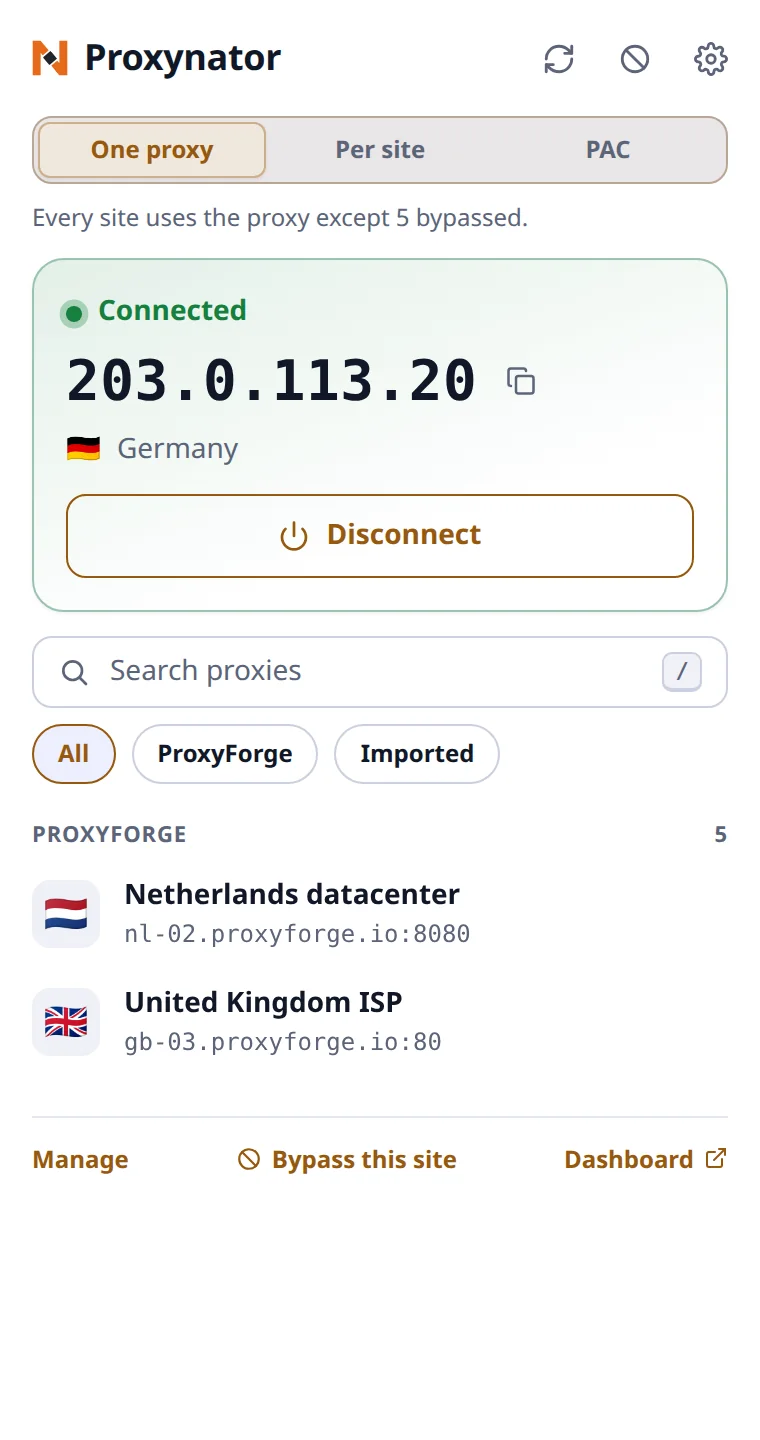
With your ProxyForge account linked, the check goes to api.proxyforge.io/tools/echo; with no dashboard linked it goes to api.ipify.org, a third-party service. You can ask the same endpoint from a terminal through any of your proxies, which is useful when a result looks wrong:
curl -s -x http://USER:PASS@HOST:PORT https://api.proxyforge.io/tools/echo
The reply is JSON with the ip and country the endpoint saw. When a connect does not succeed, the card says why in plain terms: Proxy rejected the credentials, Proxy unreachable, or Another extension controls the proxy, which means a second proxy extension holds the browser's proxy setting and has to be turned off.
Bypass a site, or proxy only a few
In One proxy mode every site goes through the connected proxy except a bypass list. Bypass this site in the popup's footer adds the current site in one click. The list starts with <local>, localhost, 127.0.0.1 and [::1], so local development servers stay direct.
Allow only turns it around: only the sites on its list use the proxy, and everything else is direct. Each mode keeps its own list, one rule per line. The matcher reads rules like this:
| Rule | Matches |
|---|---|
example.com |
That host only, not www.example.com |
*.example.com |
Any subdomain, not the bare example.com |
.example.com |
The same as *.example.com |
10.0.0.0/8 |
An IPv4 range |
<local> |
Plain hostnames with no dot, such as intranet |
https://example.com |
That host over HTTPS only |
example.com:8443 |
That host on port 8443 only |
The row that catches people is the first one. To cover a site and its subdomains, write both example.com and *.example.com.
Per-site rules
Per site sends each listed site through a proxy you choose. Rules are read top to bottom and the first one that matches decides, so put specific hosts above broad patterns. Every other site sets the fallback: direct, the connected proxy, or any saved proxy.
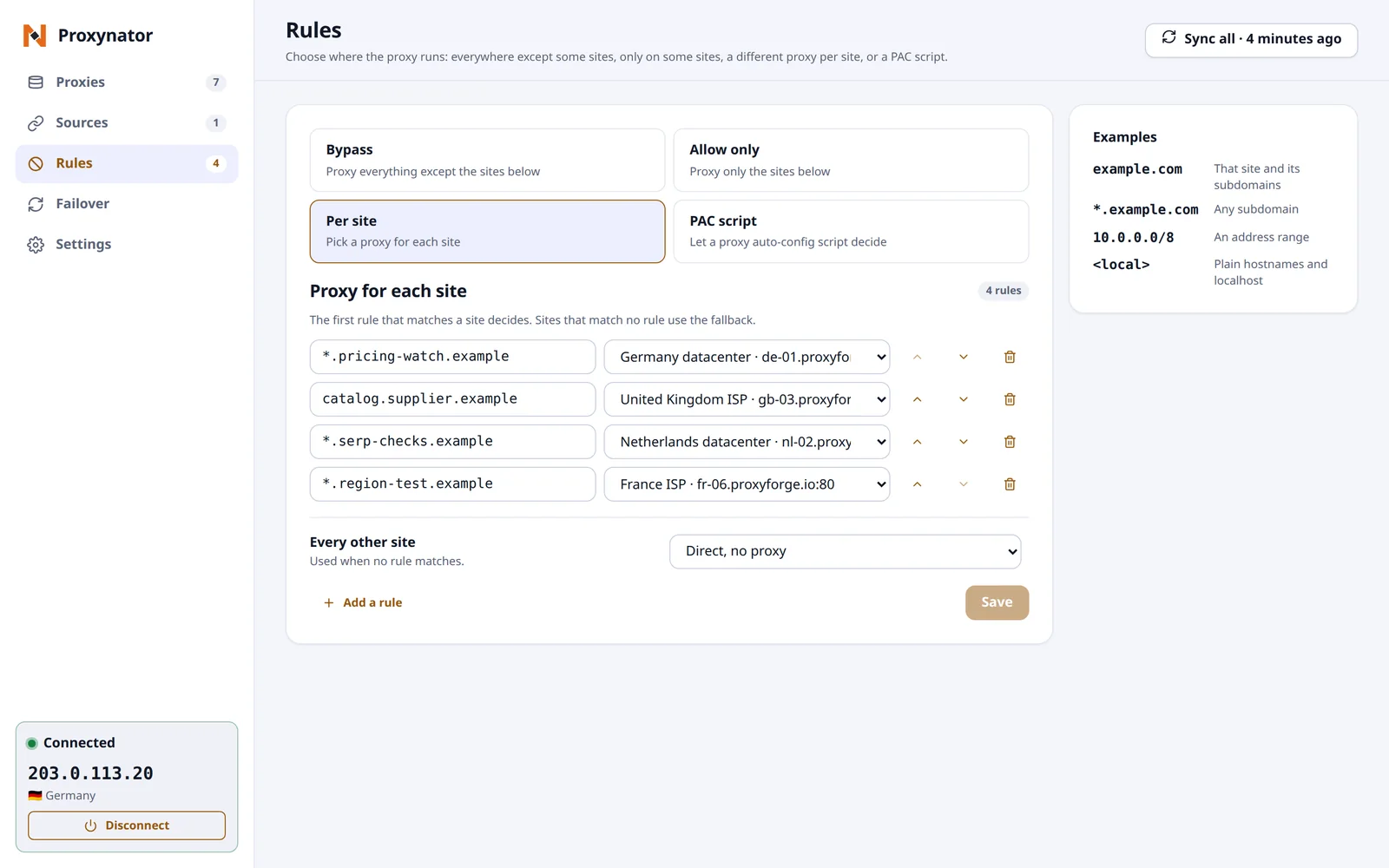
This is the mode for checking a site from several countries at once: one rule per host under test, each pointing at a proxy in a different country, with the fallback set to direct so the rest of the browser is unaffected. The region-specific QA checklist builds a release check on it.
Teams that already maintain a proxy auto-config file can use PAC script instead, with a URL or a pasted script that defines FindProxyForURL. Firefox lets a PAC script take over only when the extension is allowed in private windows.
Test before you rely on a proxy
Test on a proxy's row, or Test all beside the search, sends a request to the IP check through that proxy while your tabs keep their current routing. It records the outcome, the round-trip time and the exit IP. Latency shows in the Proxies table; the exit IP and the outcome are in the proxy's detail panel. A result counts as stale after 30 minutes, or as soon as the proxy's address or username changes. Chrome tests one proxy at a time and Firefox several. Testing is not available while a PAC script decides the routing.
Two automatic behaviours are off by default. Failover switches to the next proxy that passes a test when the connected one stops answering or refuses the login. Switch-on-block does the same when the main page of a site you list answers 403 or 429. Both have limits worth knowing before you switch them on: a captcha page that answers 200 is not detected, and a rotating gateway keeps its exit IP until its own session changes.
Rolling it out across a team
Each person installs the extension in their own browser and links it the same way. The parts worth standardising are the rules: they are plain text, one per line, so keep the bypass or per-site list in the runbook or repository the team already uses and paste it into Rules. That keeps everyone's checks comparable.
Settings has a Backup that saves imported proxies and settings to a file. The file holds proxy usernames and passwords in plain text, so treat it as a secret, and prefer linking the account over passing files around. For scripts and crawlers on the same machines, the browser is the wrong tool: ProxyDesk gives them one local endpoint instead, and its setup guide covers it.
For an overview of the extension's capabilities and its data handling in one place, see the browser extension page.